Docker
The Docker project type is best suited for production use cases. Studio deploys a Docker image that contains your NBomber load test, and you can pass CLI arguments or a JSON configuration to dynamically change the load test settings at runtime.
Your NBomber test must accept CLI arguments and must register the TimescaleDbSink.
NBomberRunner
    .RegisterScenarios(scn)
    .WithReportingSinks(new TimescaleDbSink())
    .Run(args);
Build Docker image
You can skip this part if you already have a published Docker image with your NBomber test that can be deployed into your Kubernetes cluster.
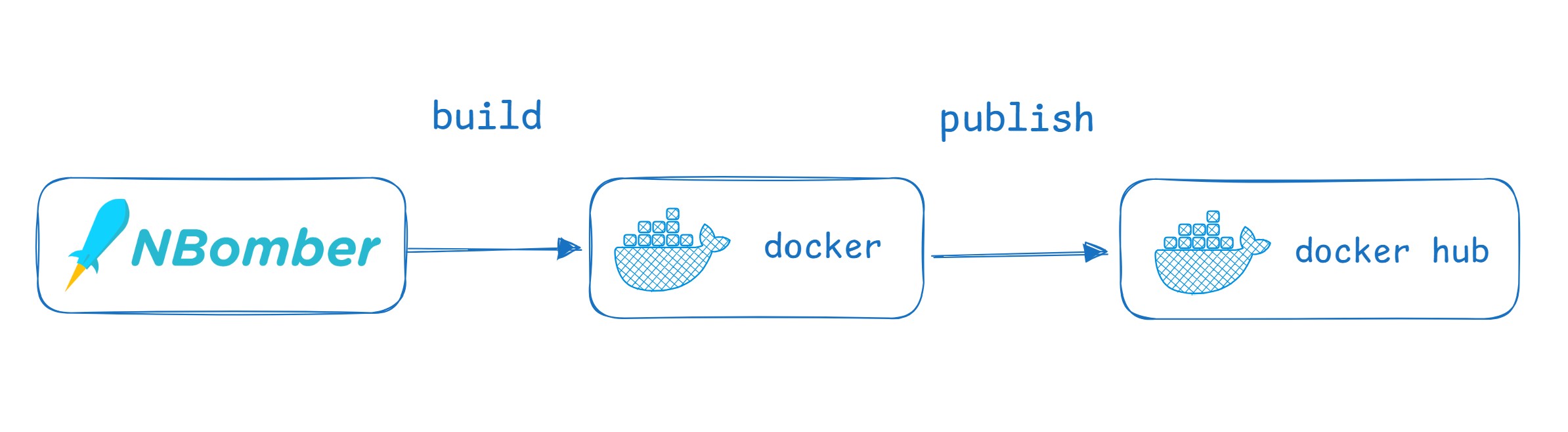
Let's start with a minimal load test that we want to build and run in Kubernetes via NBomber Studio. For this, we created a simple C# console application called NBomberStudioK8sDemo, which contains an NBomber HTTP scenario that performs basic endpoint testing.
- Note that
NBomberRunner.Run(args)accepts CLI args and also registersTimescaleDbSinkas a reporting sink, which publishes metrics so they are visible in NBomber Studio. - Also, make sure to replace
"YOUR_TARGET_HOST_URL"with your target host URL.
var httpClient = Http.CreateDefaultClient();

var scenario = Scenario.Create("my_scenario", async context =>
{
    var request = Http.CreateRequest("GET", "YOUR_TARGET_HOST_URL");

    var response = await Http.Send(httpClient, request);

    return response;
});

NBomberRunner
    .RegisterScenarios(scenario)
    .WithReportingSinks(new TimescaleDbSink())
    .Run(args);
After that, you should be able to build a Docker image and publish it to your container registry.
docker build -f Dockerfile -t nb-studio-k8sdemo:latest .
docker tag nb-studio-k8sdemo:latest {user_name}/nb-studio-k8sdemo:latest
docker push {user_name}/nb-studio-k8sdemo:latest
Create your first test
We assume that you have already created your NBomber load test, built the Docker image, and published it to your company's container registry.
In the following example, we will use the Docker image nbomberdocker/nb-studio-k8sdemo, which we built specifically for this demo. The source code is located here.
Open the Load Tests menu and choose the Docker project type. Next, fill in the required fields for your load test: Test Name and Test Suite. You can also choose how many Agents (Agents Count) should run your load test.
JSON Config
NBomber supports JSON configuration out of the box, allowing you to override load test settings such as concurrency, workload profile, custom settings, and more. NBomber Studio lets you provide this JSON config directly in the UI. If it is not empty, Studio will pass it to your load test via the --config CLI argument.
Let's specify a load simulation profile for our load test. Our load test contains a single scenario: "my_scenario".
var scenario = Scenario.Create("my_scenario", async context => ...)
Now let's define some basic load simulation settings in the JSON Config.
For example, we want our test to:
- ramp up the load to 20 requests/sec over 30 sec
- hold at 20 req/sec for 1 minute
- ramp down to 0 req/sec over 30 sec
{
  "GlobalSettings": {

    "ScenariosSettings": [
      {
          "ScenarioName": "my_scenario",
          "WarmUpDuration": "00:00:03",

          "LoadSimulationsSettings": [
              { "RampingInject": [20, "00:00:01", "00:00:30"] },
              { "Inject": [20, "00:00:01", "00:01:00"] },
              { "RampingInject": [0, "00:00:01", "00:00:30"] }
          ]
      }
    ]

  }
}
Agents count
Let's run our test in cluster mode on multiple concurrent agents. For this, let's start with 2 agents.
CLI args
NBomber Studio lets you pass CLI arguments to your NBomber test.
Some of the standard NBomber CLI arguments are reserved by Studio and cannot be used here. You can find the full list in the CLI args section of the Docker project type.
In our example, we don't have any specific CLI args to pass — but if you do, you can add them here.
Run test
Once everything is ready, click Save and then run your test. Studio creates a Job that deploys all required environment dependencies (such as the NATS message broker) and passes through configuration like the license key (if provided in Studio), the JSON config, the CLI arguments, and the infra config with the TimescaleDB connection string. Once the test finishes, the Job cleans up all resources automatically.