C# Script
The C# Script project type is best suited for simple load tests, demos, and dry runs — when you want to test a few endpoints or a single microservice and get quick results. Its main benefit is that you can change the code on the fly without recompiling your scenario, which makes it ideal for trying out NBomber and iterating quickly.
C# Scripting requires .NET 10 and uses a native .NET feature called file-based apps. You can find more details in the official documentation.
Currently, Studio supports only a single script file per project. We believe that code should live in Git, not in Studio. That's another reason why we recommend the Docker project type for production load tests.
Create your first test
Open the Load Tests menu and choose the C# Script project type.
Next, fill in the required fields for your load test: Test Name and Test Suite. You can also choose how many Agents (Agents Count) should run your load test.
Script
Below is an example C# Script that is provided as the initial code snippet. You can edit it however you like: reference additional NuGet packages, change the code, add additional reporting sinks to push metrics into your observability system, and so on.
/*
This is a Hello World HTTP example that you can customize as needed.
Feel free to implement your own load testing logic.

Make sure to add TimescaleDbSink: NBomberRunner.WithReportingSinks(new TimescaleDbSink())
This is important because, without it, metrics will not be visible in NBomber Studio.

Another important detail is disabling AOT compilation via this setting: #:property PublishAot=false
Keep it disabled, as NBomber functionality depends on it.
*/

#:property PublishAot=false
#:package [email protected]
#:package [email protected]
#:package [email protected]

using NBomber.CSharp;
using NBomber.Http.CSharp;
using NBomber.Sinks.Timescale;

var httpClient = Http.CreateDefaultClient();

var scn = Scenario.Create("hello_world_scenario", async ctx =>
{
    var request =
        Http.CreateRequest("GET", "YOUR_HOST_ADDRESS")
            .WithHeader("Content-Type", "application/json");

    var response = await Http.Send(httpClient, request);

    return response;
})
.WithWarmUpDuration(TimeSpan.FromSeconds(3))
.WithLoadSimulations(
    // it sends 2 requests per sec
    Simulation.Inject(rate: 2,
                      interval: TimeSpan.FromSeconds(1),
                      during: TimeSpan.FromSeconds(30))
);

NBomberRunner
    .RegisterScenarios(scn)
    .WithReportingSinks(new TimescaleDbSink())
    .Run(args);
Container Spec
The script runs as a Docker container — or as multiple containers if you set Agents Count greater than 1. Studio exposes a minimal set of standard Kubernetes container settings that you can use to tune container resources and node placement. Below are all the settings you can adjust. For example, you may want to run your tests on a specific Kubernetes node pool, or set higher resource requests for containers that need more CPU or RAM.
resources:
  requests:
    cpu: "2"
    memory: "512Mi"

  # limits:
  #   cpu: "4"
  #   memory: "2Gi"

# nodeSelector:
#   nodepool: loadtest
Run test
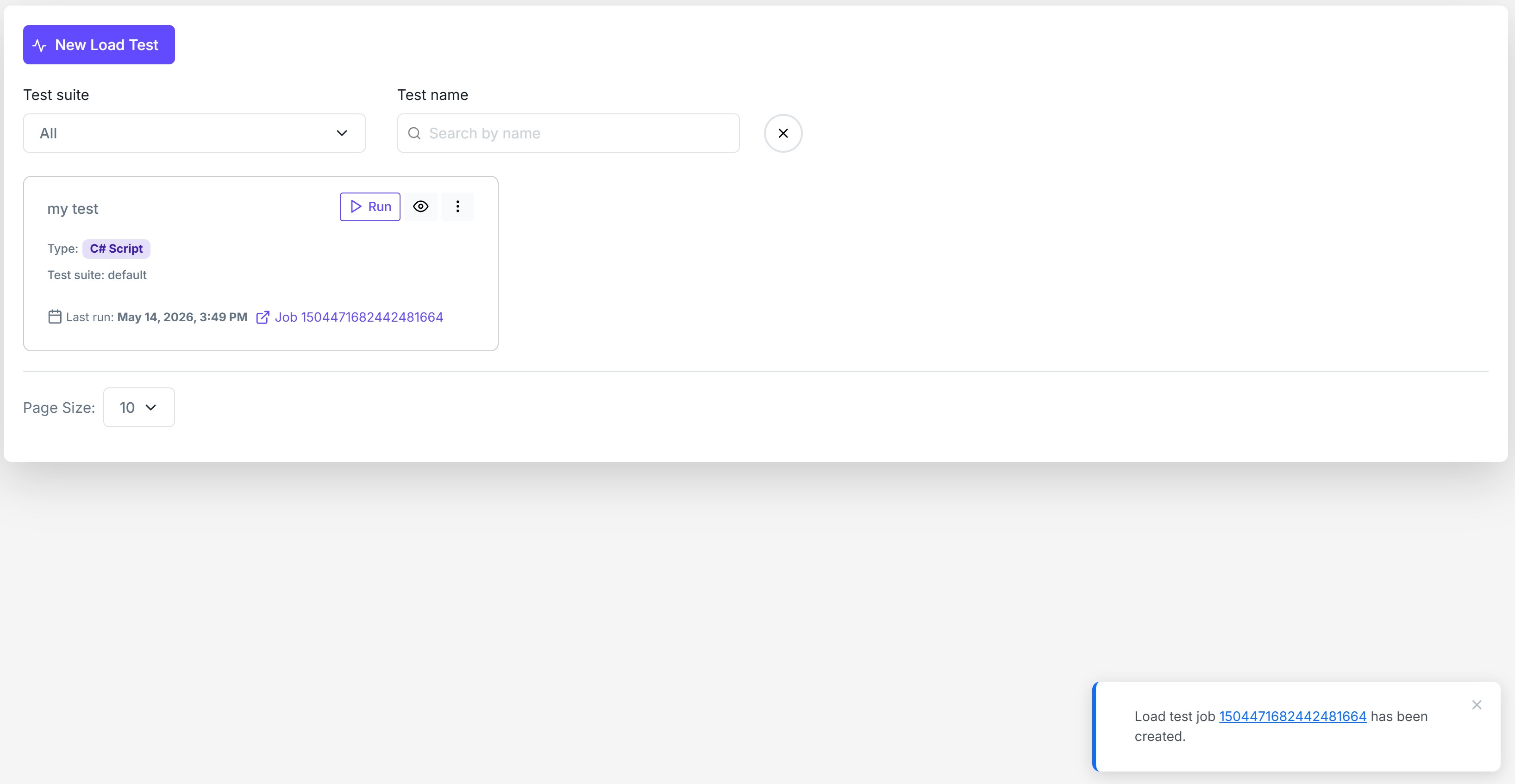
Once everything is ready, click Save and then run your test. Studio creates a Job that deploys all required environment dependencies (such as the NATS message broker) and passes through configuration like the license key (if provided in Studio) and the infra config with the TimescaleDB connection string. Once the test finishes, the Job cleans up all resources automatically.