NBomber Studio 0.10.0
NBomber Studio 0.10.0 is out! This release adds support for tags and brings a nicer UI/UX with an improved Session Details view.
Tags
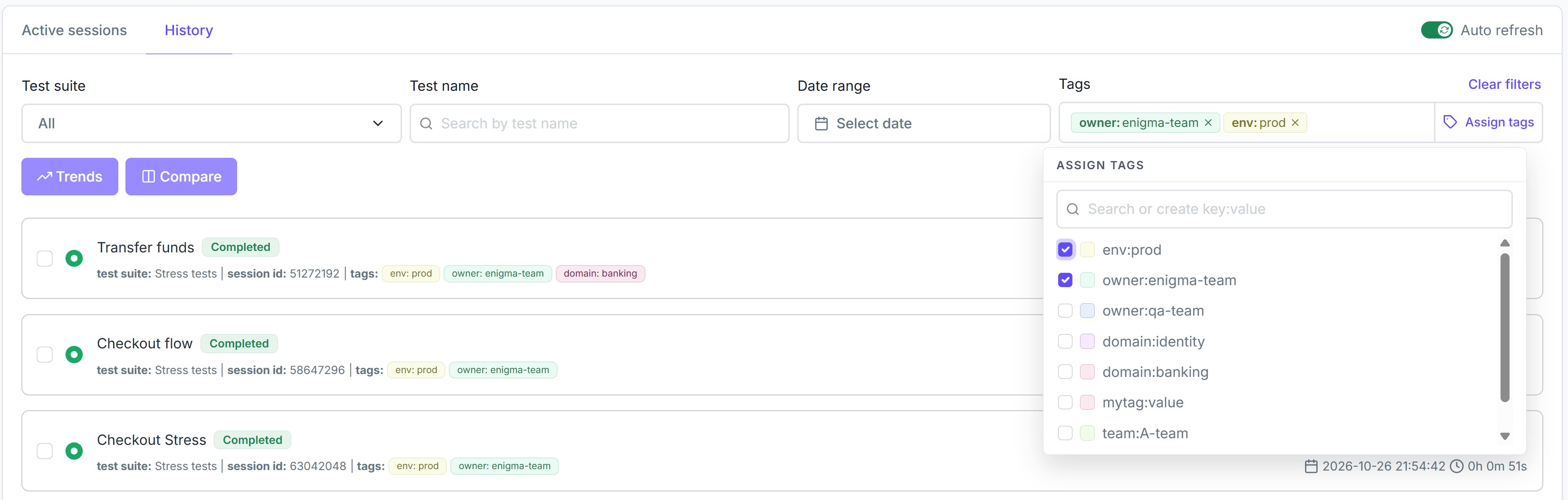
Tags are by far the biggest feature of this release. At first, we planned to support only simple labels, but then we decided to provide full-featured support for key:value pairs.
As you may have already seen, NBomber 6.7.0 added tags: key/value pairs, such as env=prod or team=payments, that you attach to a test run or to a scenario. Studio now shows these tags and uses them to find your sessions.
- Session tags show in the sessions lists, on one line with the test suite and the session ID. They also show in the Session Info panel of the Session Details view.
- Scenario tags show in the Summary tab.
This functionality requires NBomber v6.7.1 and NBomber.Sinks.Timescale 0.16.0.
Filter sessions by tags
One of the main use cases for tags is to filter sessions and load tests. For this, we added the Assign tags input control. It shows all the available tags, so you can select the tags that you need and filter the data by them.
Tags for load tests
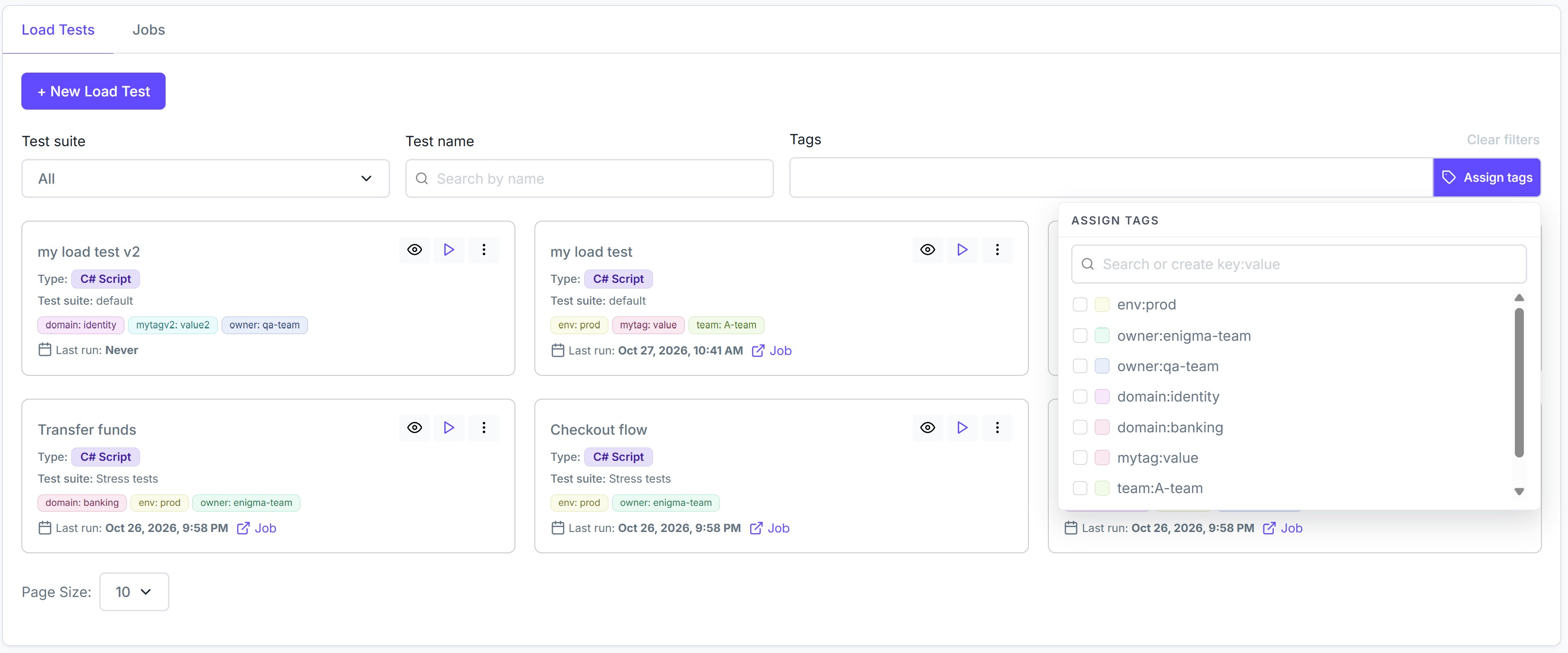
You can now assign tags to a load test. Click Assign tags in the load test form, then select an existing tag or create a new one as key:value. The load tests list shows the tags of each load test, and you can filter load tests by tags.
Filters redesign
We rebuilt the filters of the sessions lists:
- Test suite. A combo box with fuzzy search. It suggests the test suites that Studio knows, including the test suites of pulled sessions.
- Test name. The search by test name is faster now.
- Date range. A new calendar picker with a Clear button.
- Clear filters. One link resets all filters.
Session Details: aligned with the HTML report
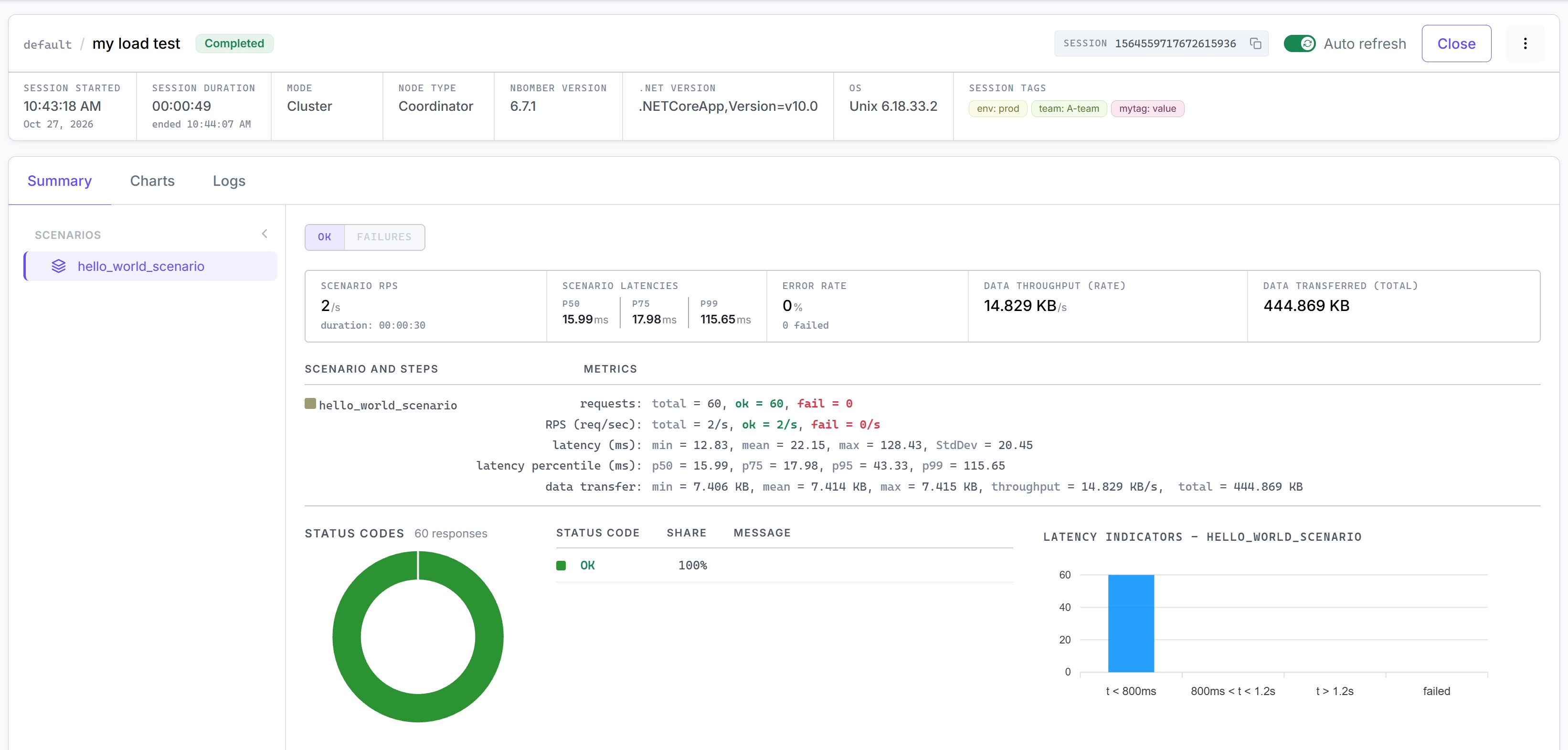
In NBomber 6.7, the HTML report got a new design. Studio now uses the same design, so the report and Studio look the same.
- New Session Info panel. The top of the view shows the main facts about the test run: the test suite and test name, the session status, the start time, the duration (or the elapsed time for an active session), the mode, the node type, and the NBomber, .NET, and OS versions. It also shows the session tags. You can copy the session ID with one click.
- New Summary table. A new table shows the stats of the scenarios and steps. The latency indicators show the
OkandFailstats. - All charts in one tab. The Charts tab groups the scenario metrics, the custom metrics, and the .NET process metrics. Use the toggle at the top to switch between them.
Easier navigation
-
Restore filters. When you close the details of a session, a load test, or a job, Studio goes back to the list with the same filters, page, and tab. This also works after a page reload.
-
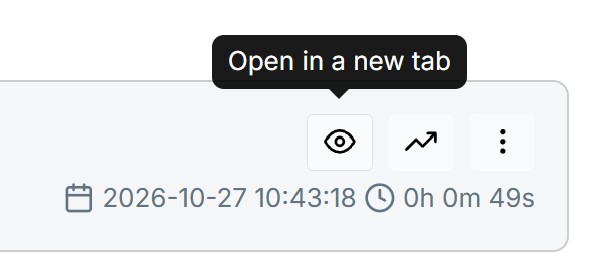
Open in a new tab. Each row of the sessions and load tests lists has a new button that opens the details in a new browser tab.
📦 Docker image & Helm chart
NBomber Studio is available as a Docker image and a Helm chart:
- Docker Hub: nbomberdocker/nbomber-studio
- Helm chart: nbomber-studio (source)